We use essential cookies to make our site work. With your consent, we may also use non-essential cookies to improve user experience and analyze website traffic. By clicking “Accept,” you agree to our website's cookie use as described in our Cookie Policy. You can change your cookie settings at any time by clicking “Preferences.”

A full tour, no salesy nonsense

Here's exactly what you get
from sign-up to daily workflow.

Ten screens, in order. About a 3-minute read — and roughly the same time it takes to actually sign up and start working. If anything here's unclear, email Chip.

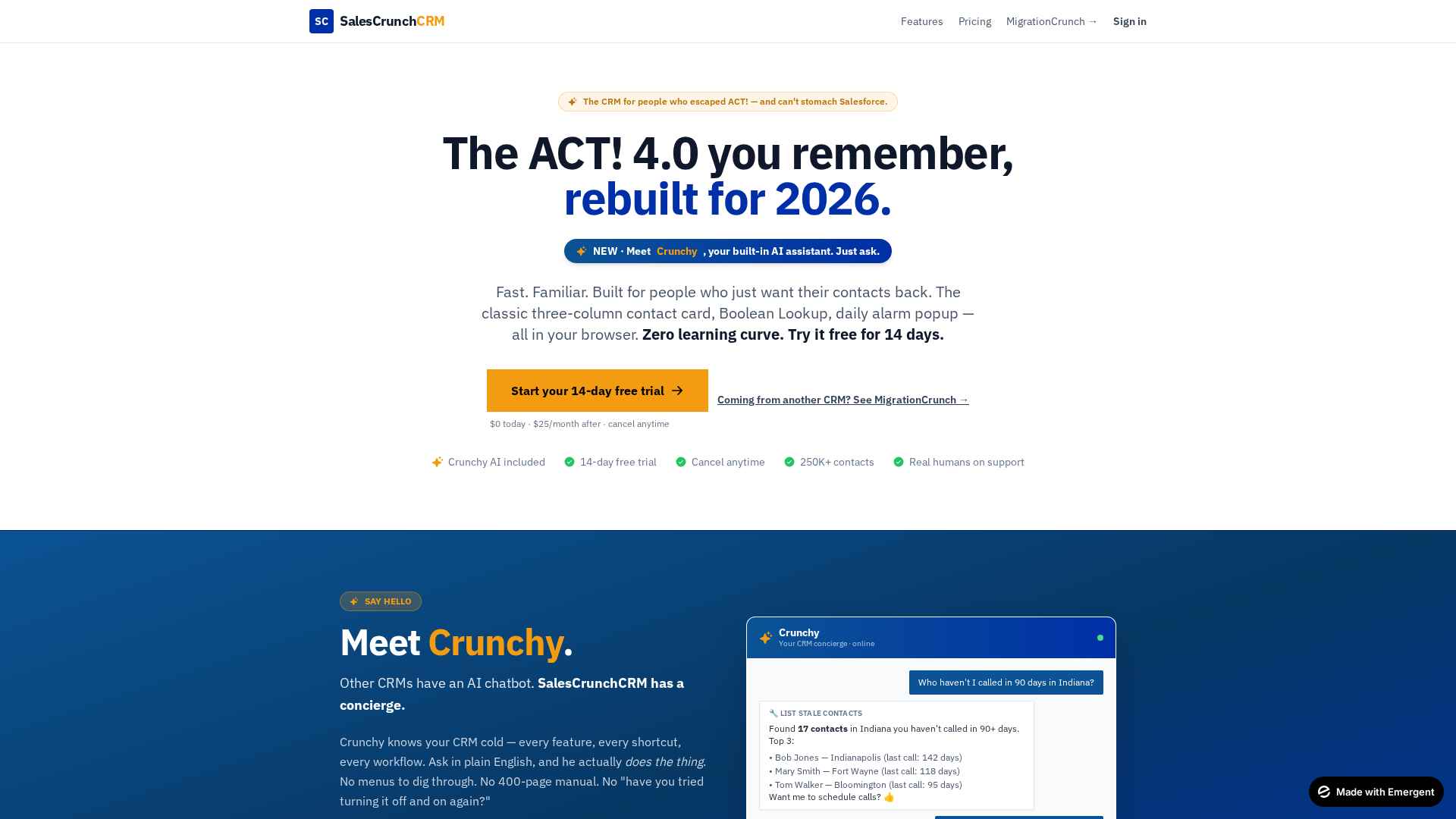
SalesCrunchCRM homepage
1

Land on the homepage

First impression of SalesCrunchCRM. The headline says what it is — “The ACT! 4.0 you remember, rebuilt for 2026” — and the demo card down below shows Crunchy (the built-in AI) actually doing work, not just chatting.

Hit the big amber “Start your 14-day free trial” button when you're ready. No credit card up front — it's $0 today, $25/month after the trial, and you can cancel anytime from the same dashboard you sign up on.
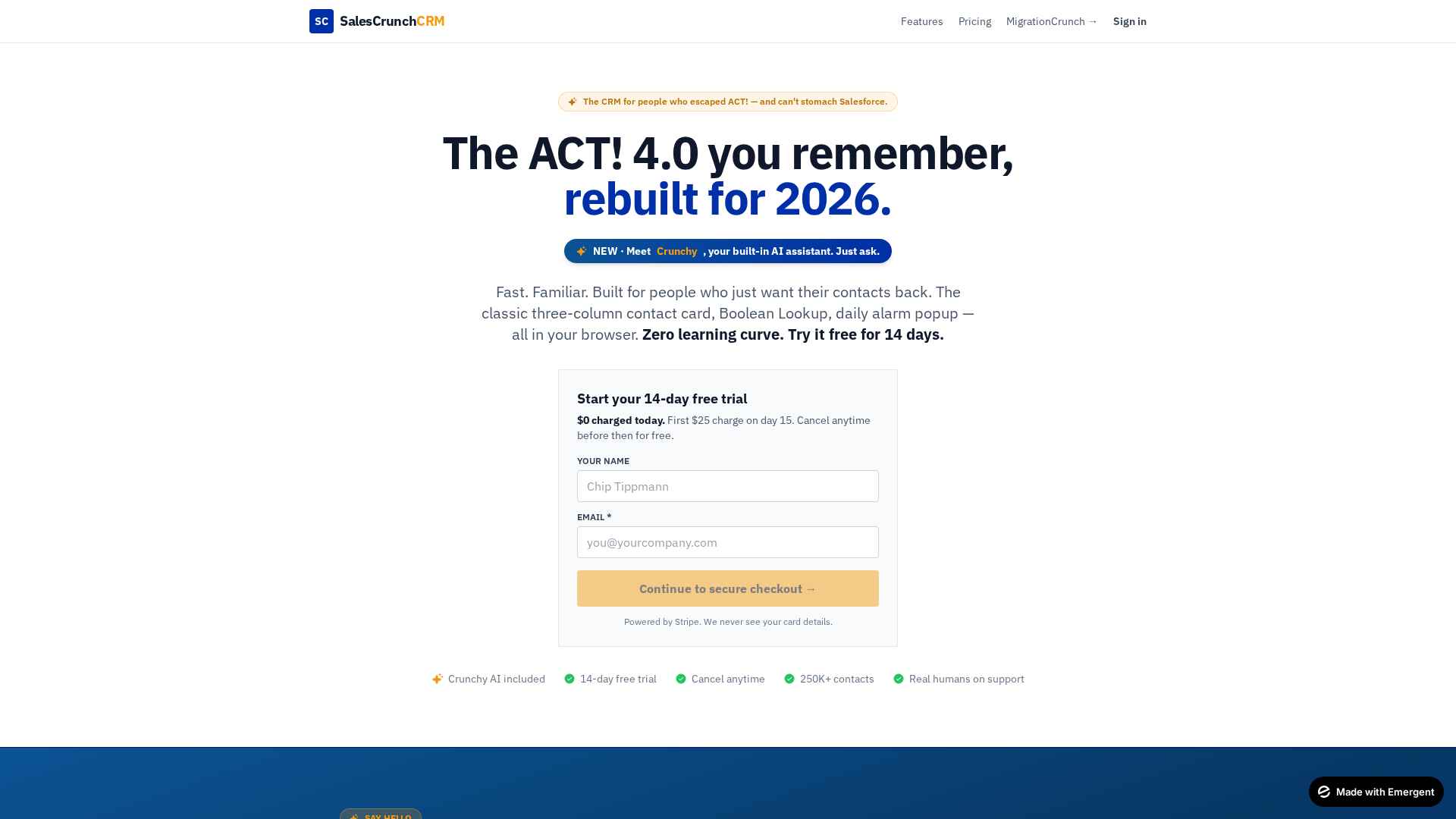
Start your 14-day free trial form
2

Start your free trial

Hit the amber “Start your 14-day free trial” button and the form expands right there — no separate sign-up page. Just type your name and email, then “Continue to secure checkout” drops you on a Stripe page where you enter card details.

You won't be charged today. $0 today, first $25 charge lands on day 15, and you can cancel anytime in those 14 days from your account settings — no phone call, no email loops.

Prefer Google one-click instead? The Sign in → Register tab has a “Continue with Google” option that skips Stripe entirely.
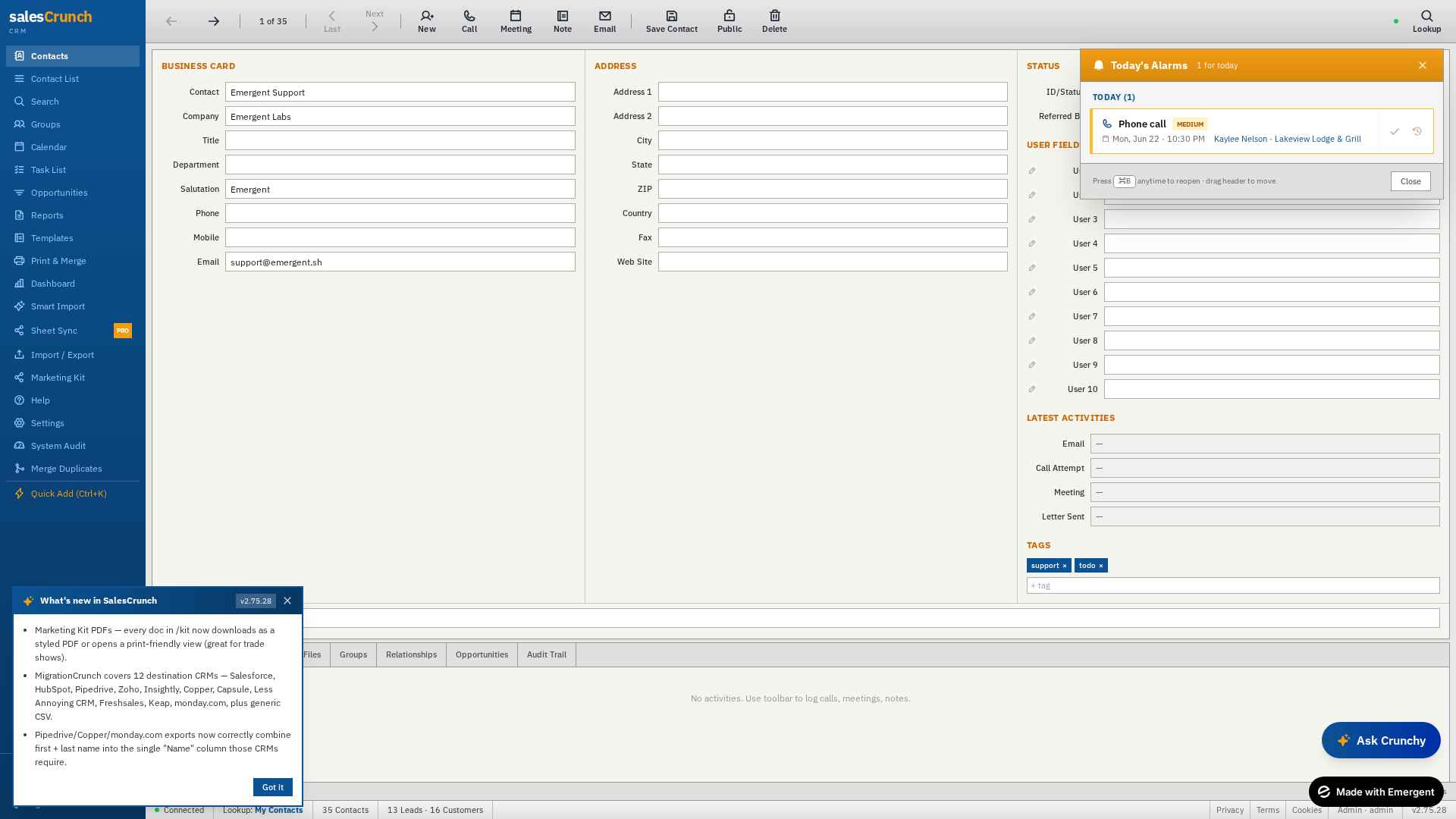
First login showing the ACT-style contact card with alarms and whats-new
3

You’re in. The classic ACT! layout, immediately.

No 400-page onboarding. The second you sign in you're staring at the contact card — Business Card on the left, Address center, Status + User Fields on the right — exactly where ACT! 4.0 put them in 1998.

The orange toolbar across the top (New / Call / Meeting / Note / Email / Save / Delete) is the same workflow muscle memory ACT! veterans already have. The blue sidebar (Contacts, Calendar, Tasks, Reports, Templates, Pipeline) is one click away.

Two friendly nudges greet you on day one: Today's Alarms in the top-right (anything you scheduled that's due) and What's New bottom-left (product updates since your last login). Dismiss them and the workspace is yours.
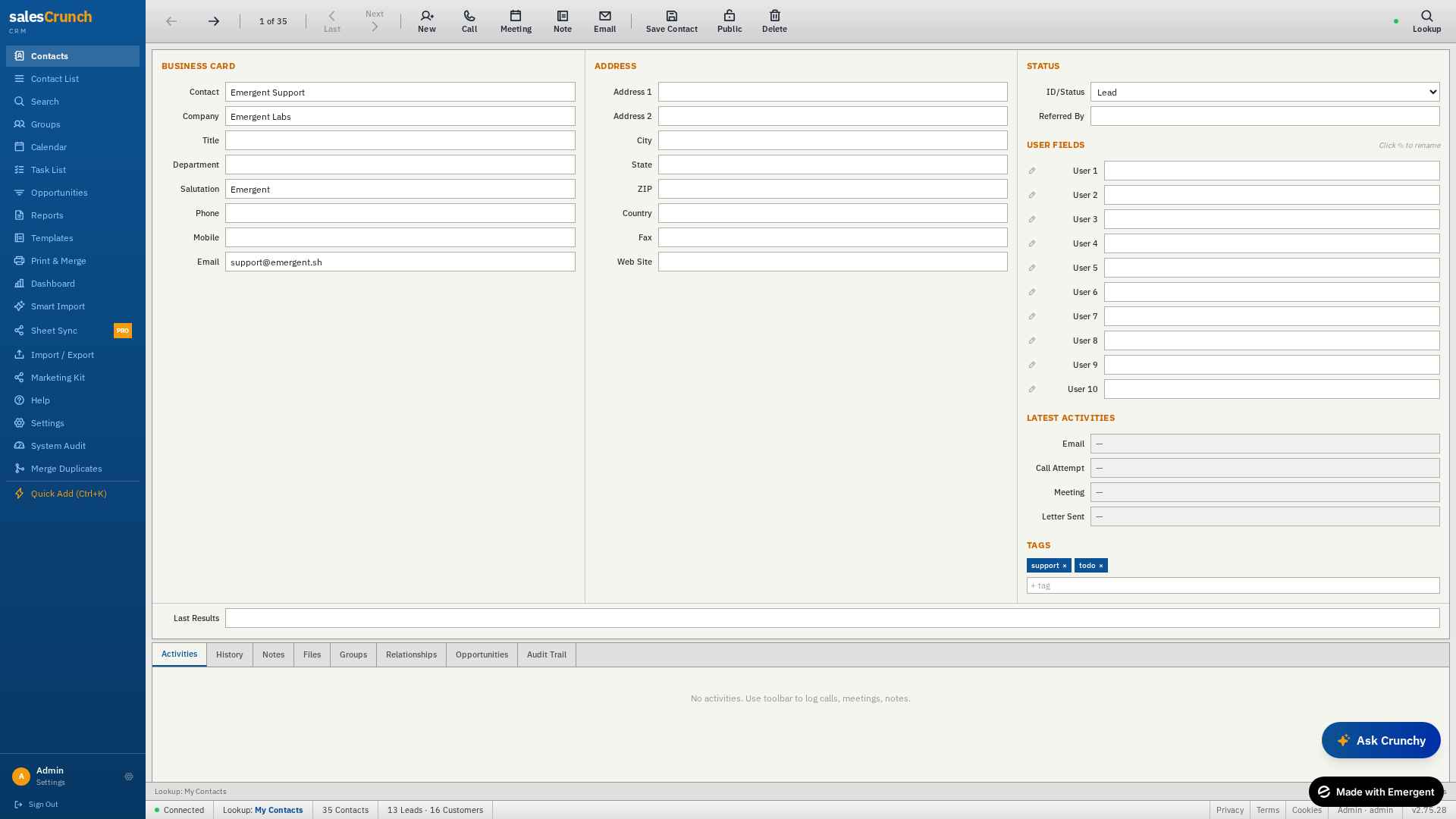
Clean three-column contact card
4

The contact card, exactly where it should be

This is the heart of SalesCrunchCRM — and the heart of why ACT! 4.0 users feel at home in 30 seconds.

Three columns, just like 1998:
  • Business Card (left) — Contact, Company, Title, Phone, Email — the stuff you reach for hundreds of times a day
  • Address (center) — full mailing block plus Web Site
  • Status + User Fields (right) — Lead / Prospect / Customer tag, plus 10 renameable User Fields (click the pencil to rename them to your industry — “Policy #”, “Renewal Date”, whatever you need)

Below the card: Activities · History · Notes · Files · Groups · Relationships · Opportunities · Audit Trail — every tab ACT! had, none it didn't.
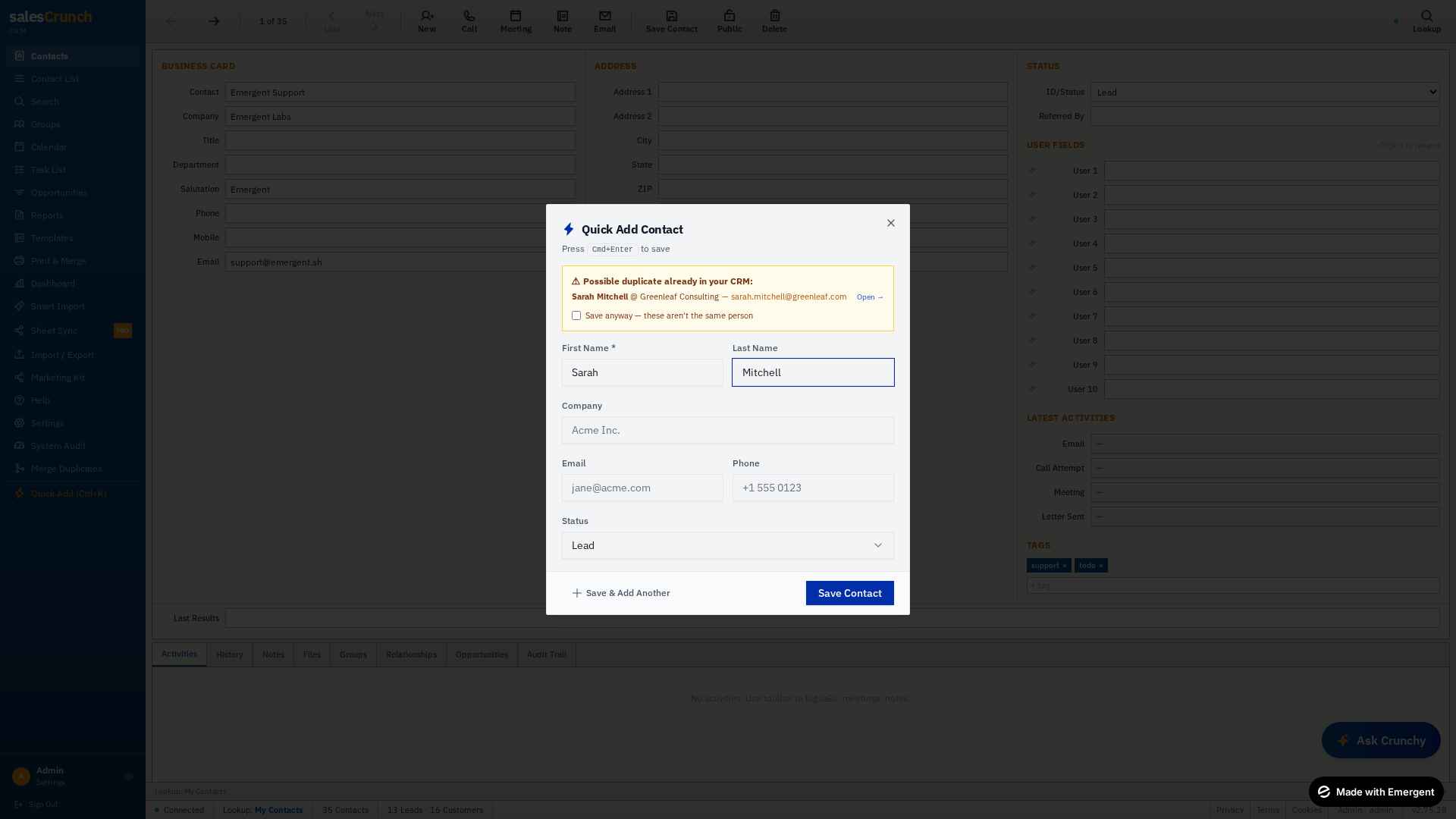
Quick Add Contact modal
5

Add a contact in 5 seconds with Quick Add

Phone rings. New prospect. You don't have time to navigate to a form.

Hit Ctrl/Cmd+K from any screen (or click Quick Add in the sidebar) and this lightweight modal pops up. First name, last name, company, email, phone, status — the absolute minimum to capture the lead before they hang up.

Hit Cmd+Enter to save and you're back where you were. Need to capture three more from the same call? Hit “Save & Add Another” and the form clears for the next one. No page reloads, no losing your place. (And if there's already a Sarah Mitchell in your CRM, it warns you before you create a duplicate.)
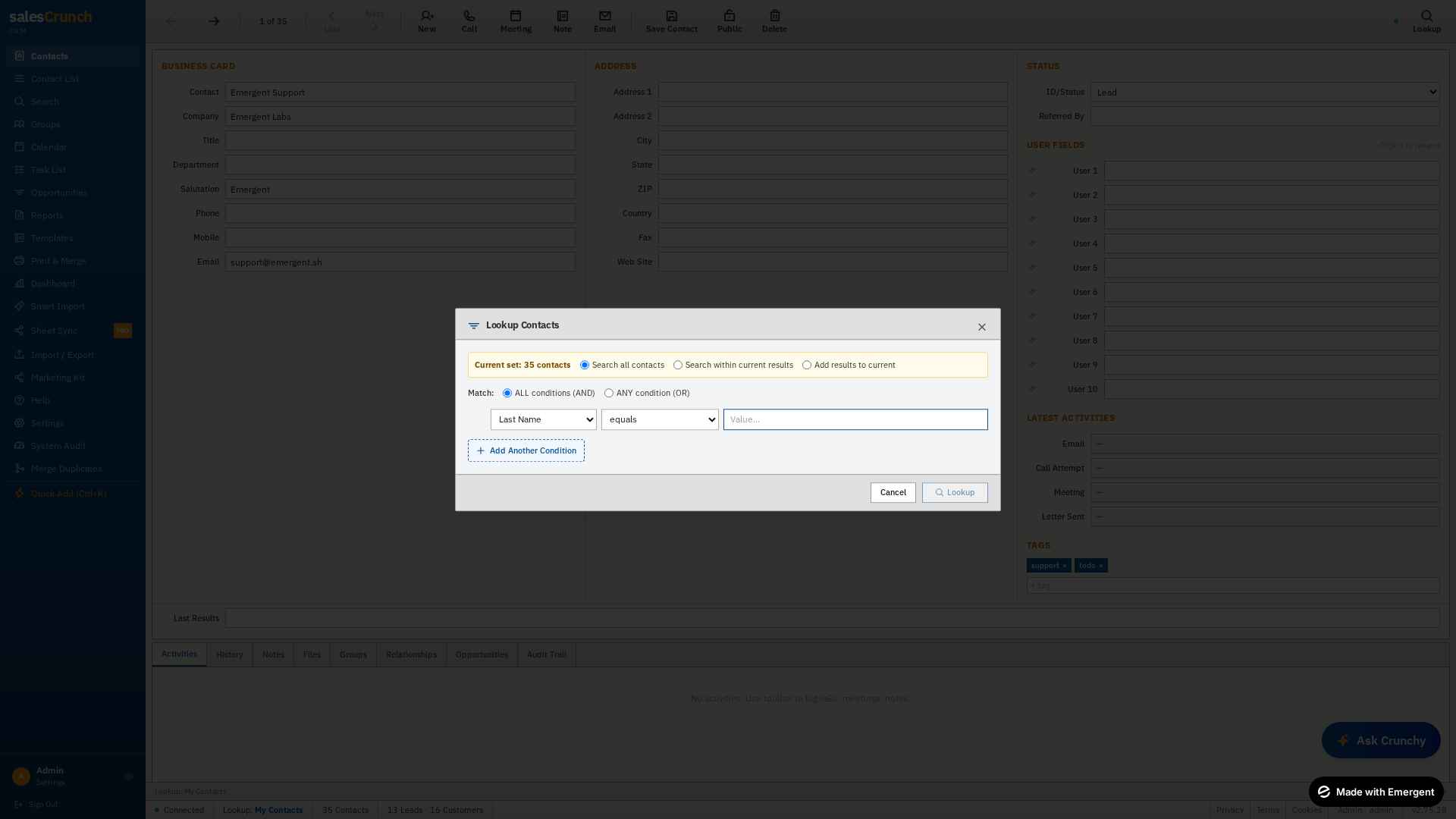
Boolean Lookup query builder dialog
6

Boolean Lookup, the way you remember it

If you used ACT! 3.0 or 4.0, this is the screen you've been looking for since 2014.

Hit Lookup on the toolbar and you get the same Boolean query builder ACT! had — except it runs against 250,000 contacts in MongoDB instead of grinding a desktop SQL Server to a halt.

Pick a field (Last Name, Company, State, Tags, Last Activity, any of your 10 User Fields), pick an operator (equals · contains · starts with · is empty · greater than · less than · between · never), type a value, and click Add Another Condition to stack them with AND/OR logic.

“Everyone in Texas with ‘Tech’ in their company who I haven't called in 90 days.” Three conditions. Two seconds.
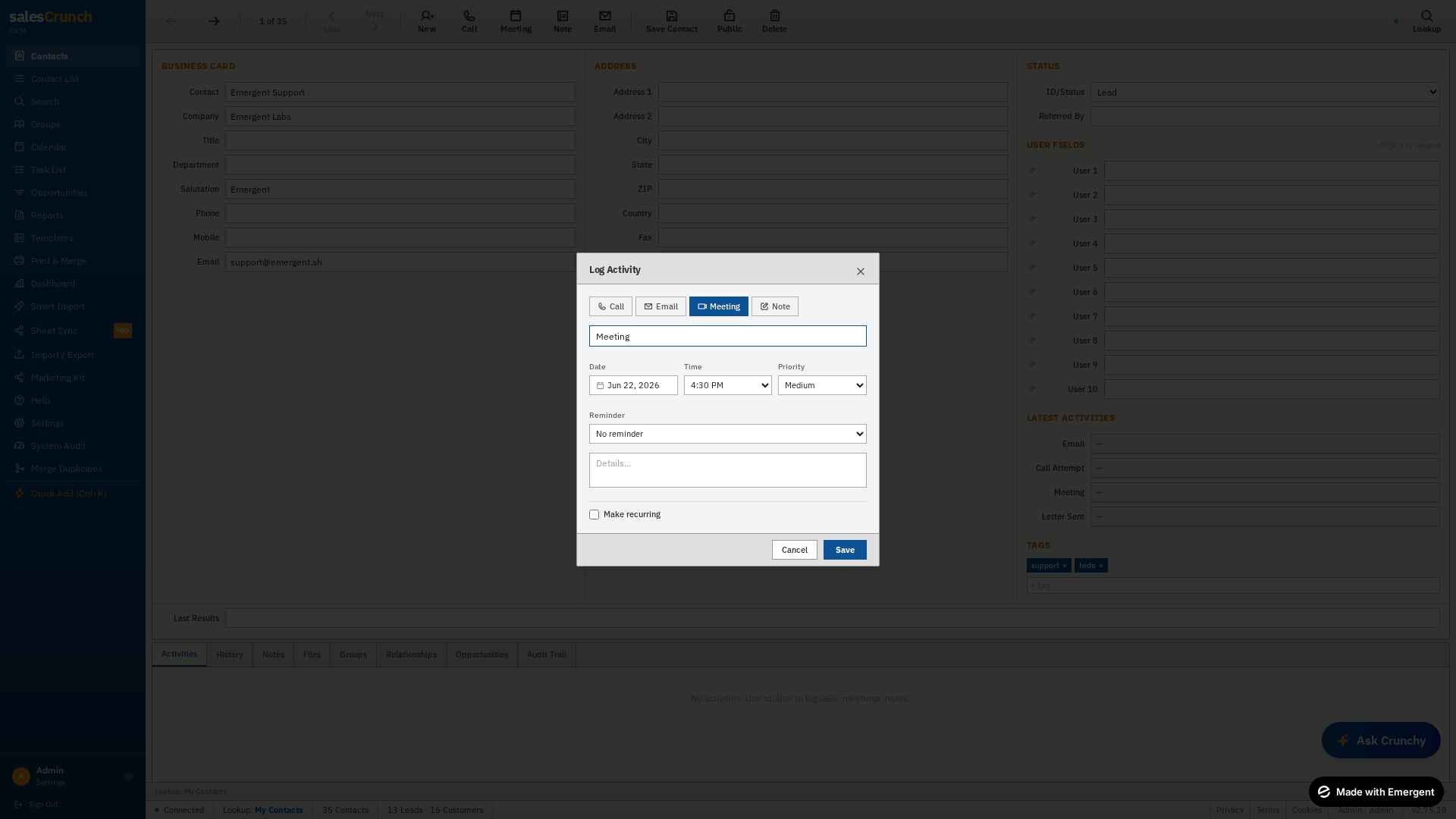
Log Activity dialog showing the Meeting tab
7

Log a call, meeting, note, or email in 4 clicks

Toolbar buttons: Call · Email · Meeting · Note. Click any of them and this Log Activity dialog drops in.

Pick Date · Time · Priority (Low/Medium/High), set a Reminder if you want an alarm to pop up later, type a quick Details note, hit Save. Done. The activity logs to this contact's history with a timestamp and shows up on your Task List and Calendar.

Need it to repeat? Check “Make recurring” — daily, weekly, bi-weekly, monthly, or yearly, up to 52 instances. Set your standing Tuesday review call once, it's on your task list forever.

Up in the top-right corner, Today's Alarms rolls in whenever something's due — drag the panel anywhere on screen, click an alarm to jump to that contact, snooze, complete, or reschedule.
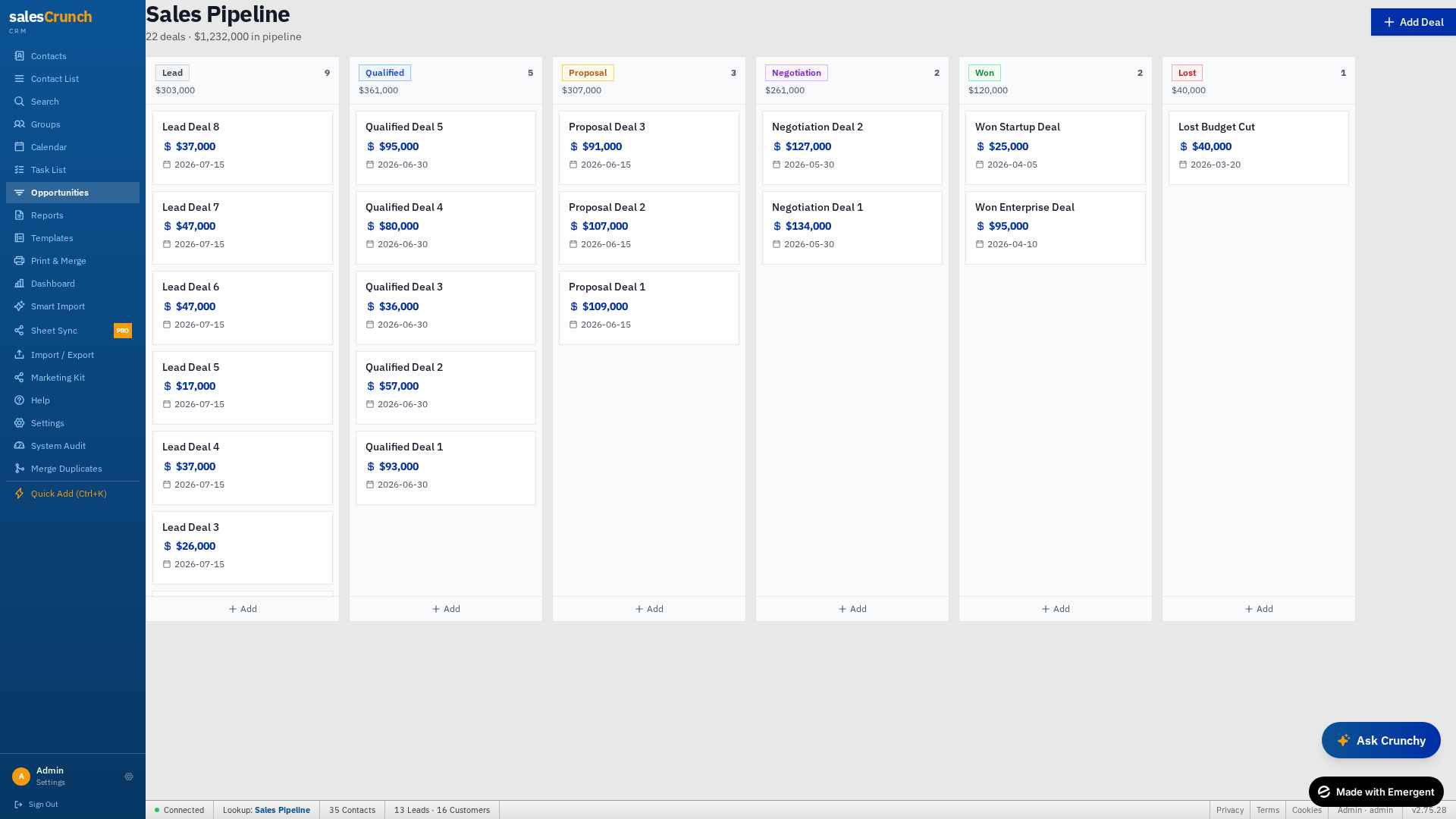
Sales Pipeline Kanban with six stages
8

Watch every dollar move through the pipeline

Click Opportunities in the sidebar and you land in the Sales Pipeline — drag-and-drop Kanban with every active deal grouped by stage.

Six columns, in classic sales order: Lead → Qualified → Proposal → Negotiation → Won / Lost. The header at the top of each column shows the deal count and the total dollar value — so at a glance you can see “$307K in proposal, $261K negotiating” without opening a report.

Each card carries the deal name, amount, and expected close date. Grab one and drag it from Proposal to Negotiation — the totals at the top recalculate live. Hit + Add at the bottom of any column to drop a new deal in, or + Add Deal top-right to start one from the contact card.

The page header is honest about your whole book: “22 deals · $1.2M in pipeline.” No forecasting models, no probability juggling — just what's actually live.
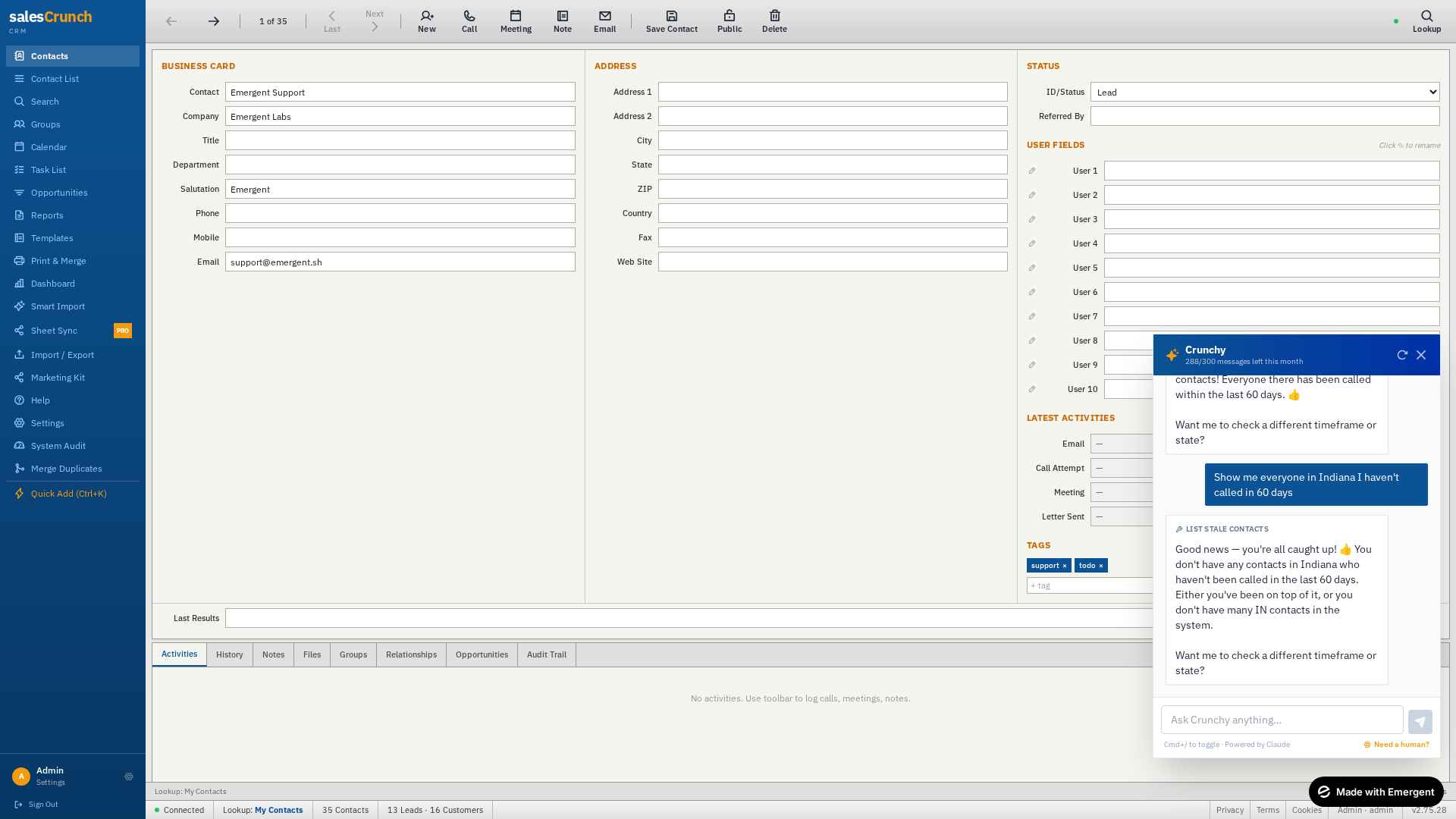
Crunchy AI drawer answering a stale-contacts question
9

Meet Crunchy, your built-in AI sidekick

Bottom-right corner of every page: the “Ask Crunchy” button. Click it (or hit Cmd/Ctrl+/) and Crunchy slides in — a draggable, dismissable chat drawer that doesn't take you away from the page you're working on.

Crunchy isn't a bolted-on chatbot. He's been trained on SalesCrunchCRM specifically — he knows where every feature lives, and he has hands. Ask him “Show me everyone in Indiana I haven't called in 60 days” and he actually runs the lookup against your data and answers — “Good news, you're on top of it” — instead of just describing how you could do it yourself.

Other tricks he's good at:
  • Search + filter — “count my customers in Texas”
  • Schedule activities — “log a 30-min call with Bob Smith tomorrow at 2pm”
  • Bulk emails with approval — “write a touch-base note to every lead I haven't called in 90 days”
  • Account questions — subscription status, billing portal link

You get 300 messages a month included free, the counter is right there in the header. When he hits a limit of what he can help with, the “Need a human?” button auto-sends your full transcript to support — they show up already up to speed.
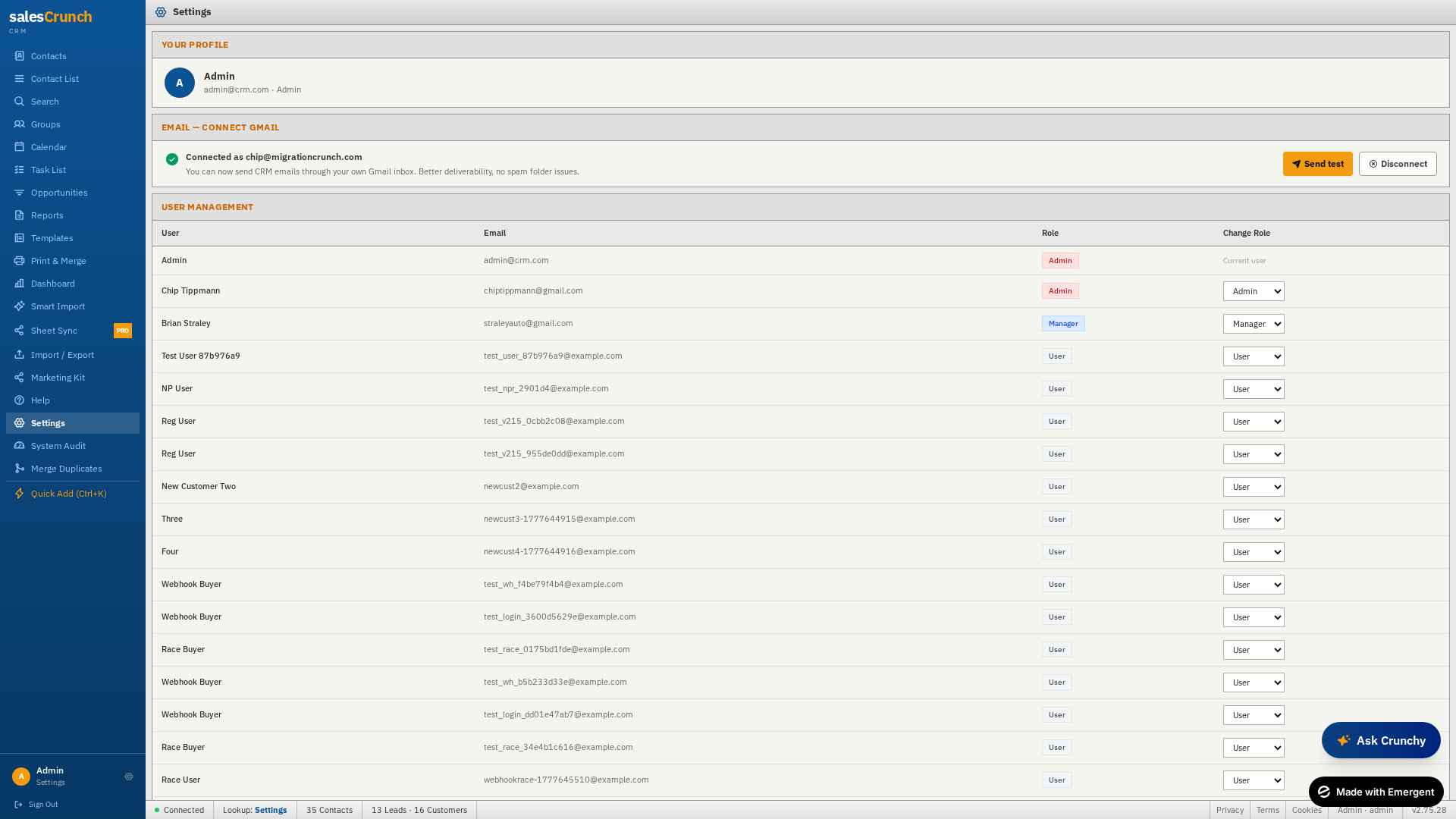
Settings page showing Profile, Email, and User Management sections
10

Settings: make the workspace yours

Click Settings in the sidebar — everything you need to customize SalesCrunchCRM lives here, in one scroll.

Your Profile — name, avatar, email, role badge.

Email — Connect Gmail — link your Gmail in one click and CRM emails go out through your inbox, not a generic sender. Better deliverability, no spam-folder issues.

User Management — invite teammates, set each to Admin / Manager / User. Roles take effect instantly.

Custom User Fields — rename the 10 User Fields on the contact card to match your industry (Policy #, Premium, Renewal Date — whatever). Same workflow ACT! always had, instant cloud sync.

Workspace Backup — one-click export of every custom field, drop-down, and template definition as a JSON file. Restore the whole admin setup to any new install in 30 seconds.

Subscription & billing are handled through Stripe's hosted billing portal — update card, see invoices, cancel anytime. Ask Crunchy “open my billing portal” and he hands you the link, no menu hunting.

That's the whole thing.

No phone calls, no implementation specialist, no $5,000 invoice. Sign up, click around, and only pay if you're still using it on day 15.

$0 today. $25/month after trial. Cancel anytime.

Coming from another CRM with a messy export? See how MigrationCrunch cleans it up →

Made with Emergent